Internal Process Improvement
Localisation Helper

Is it really that complicated?
Localising a product sounds simple: just translate the text. In reality, it involves dozens of tedious sub-tasks. Think of it like packing for a trip—the flight is easy, but folding, labeling, and organizing take forever. Software handled the translations, but all the prep work around it was manual, repetitive, and error-prone.
Supporting multiple languages across hundreds of screens meant managing thousands of unique text strings. As features expanded, manual key naming became inconsistent and unsustainable. Worse, merging new keys in Lokalise wiped existing character limits unless manually re-added—a critical bug that couldn't be resolved through support alone.
Our DesignOps team stepped in to build a better process
my Role
Lead DesignOps Designer
Tools
Figma Plugin, Web Dashboard, Lokalise
Impact
60% faster export time & zero lost character limits
Timeline
2 sprints
Figma Plugin
Ensure key naming consistency through automation
Problem
Structured key naming gives developers a predictable, self-documenting hierarchy that prevents code conflicts and speeds up debugging. Previously, developers added keys manually—a slow process prone to human error.
How did we solve the issue
Design took over key naming directly from Figma before pushing to Lokalise. Layer names generate the key names automatically via a custom plugin, guaranteeing naming consistency and uniqueness across every string.
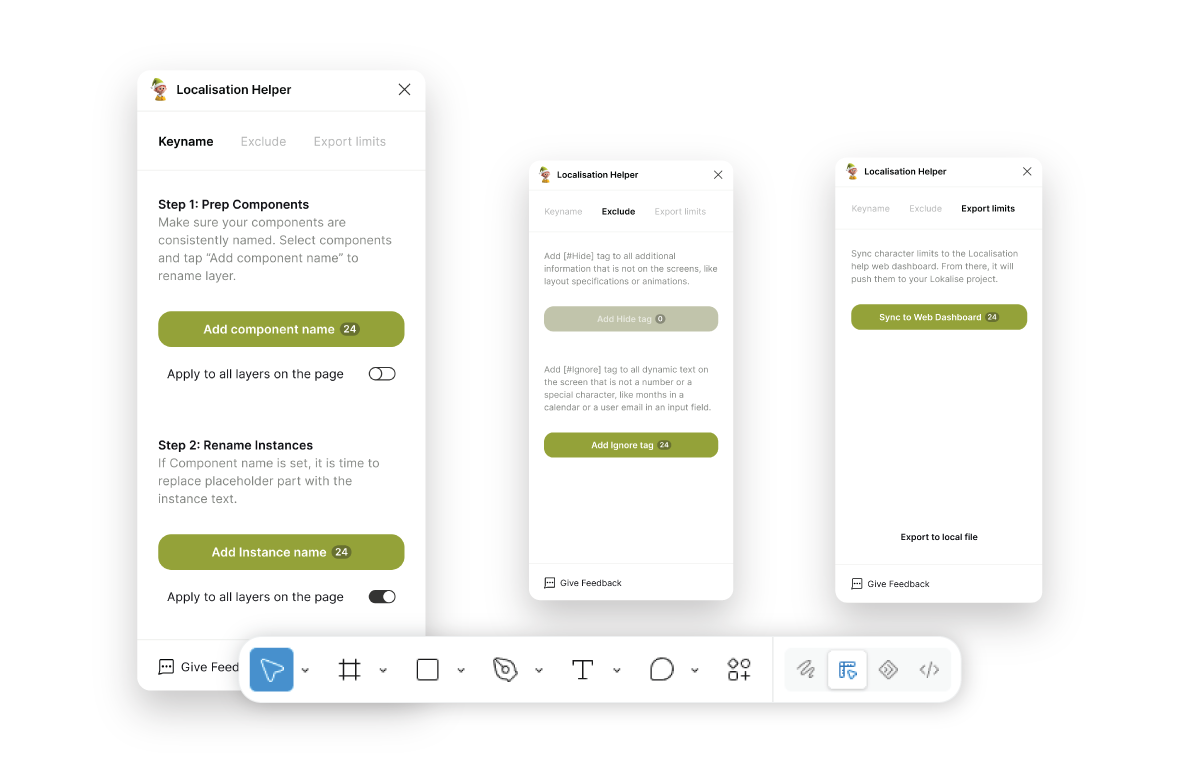
step 1
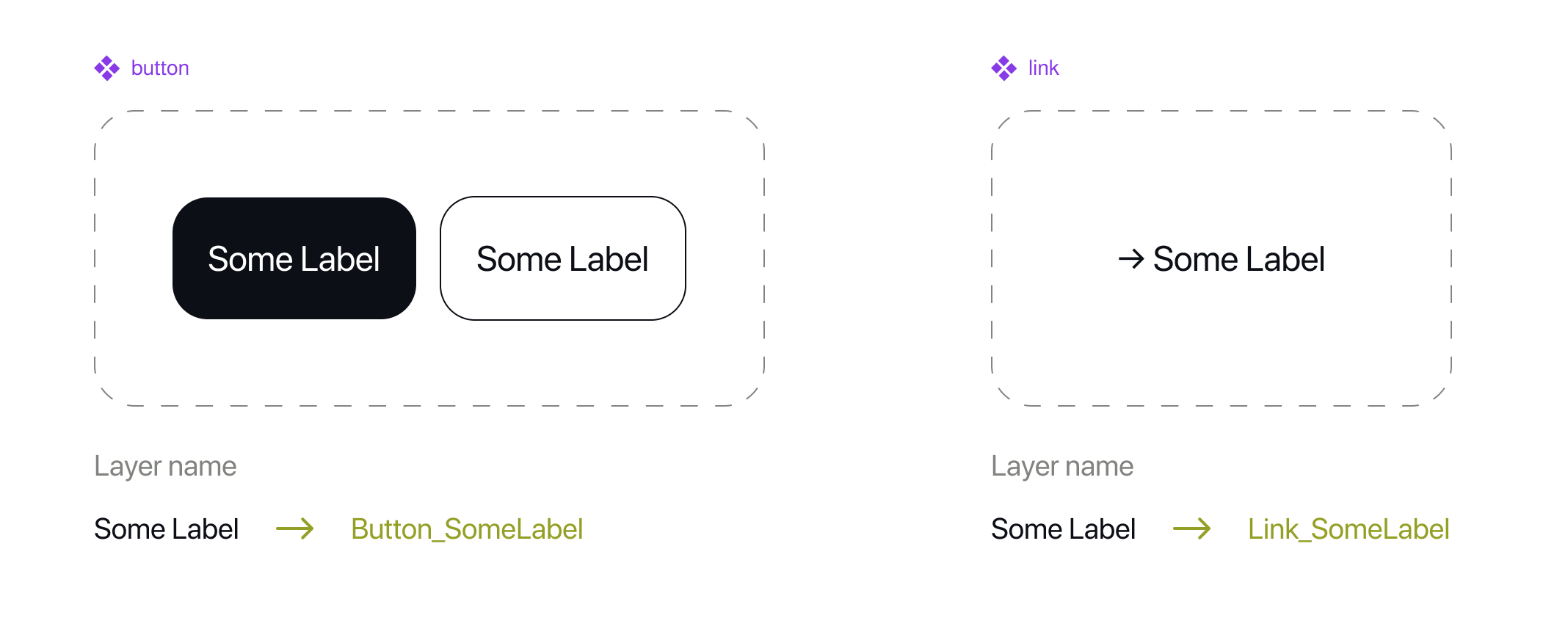
Renaming Components in the Design System
Two components can share identical initial copy while serving different contexts. To avoid conflicts when copy changes down the road, we needed distinct layer identifiers.
While our design system components were clean, internal layer names varied. The plugin combines the component name with the text inside the layer to auto-rename it (e.g., Button_SomeLabel). This was a quick one-time setup for existing components and is now standard for new ones.
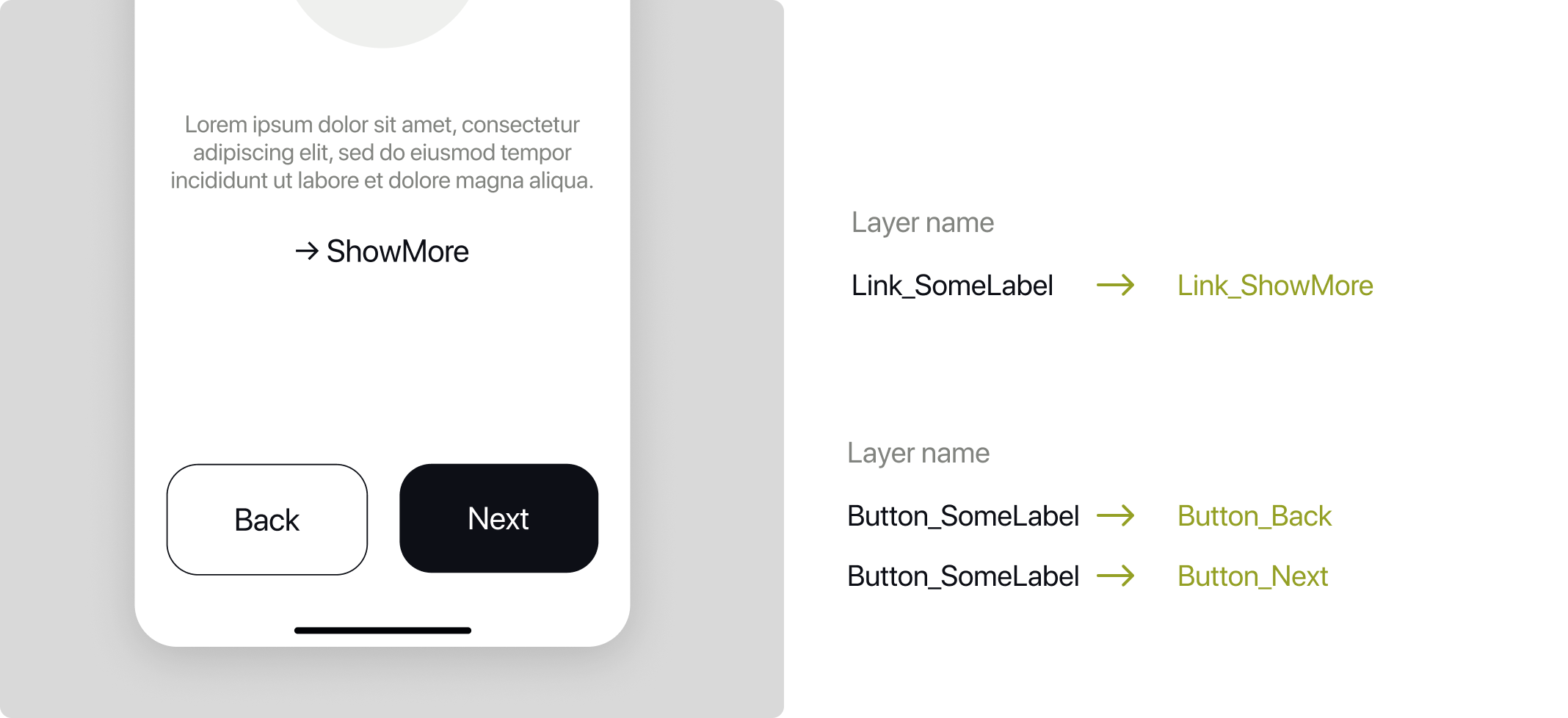
step 2
Renaming Instances Across Screens
Designers simply select their target screens and tap "Add instance name". The plugin replaces placeholder layer names with the unique instance text across all layers. When exported to Lokalise, these layer names seamlessly serve as the official translation keys.
FIGMA PLUGIN + WEB DASHBOARD
Make character limits visible to designers and translators.
Problem
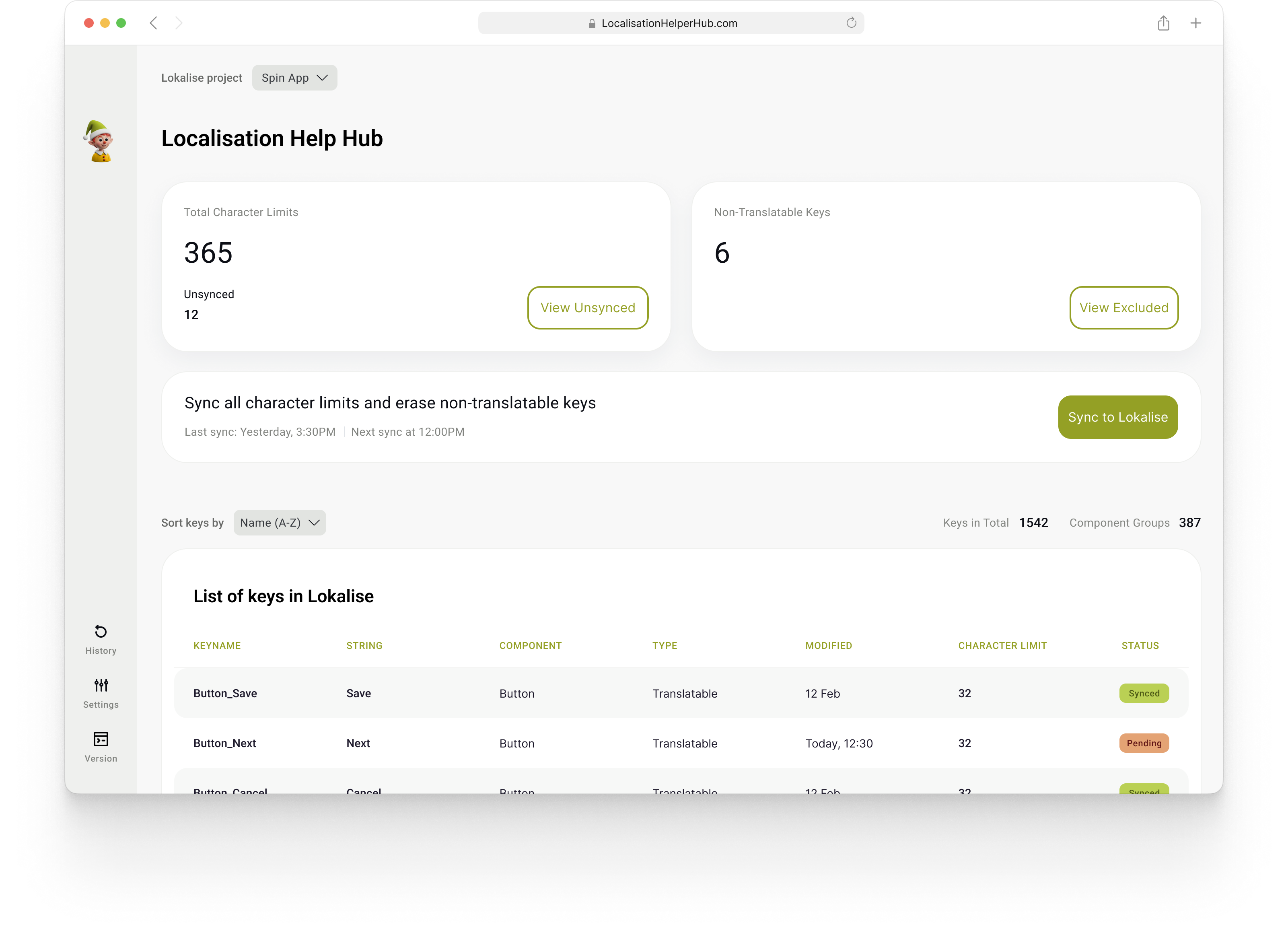
Adding character limits manually in Lokalise was repetitive—especially since keys originating from the same component shared identical constraints. Worse, whenever new keys pushed from Figma merged with existing ones, Lokalise wiped the character limits unless manually re-added—an ongoing bug we couldn't resolve through support alone.
How did we solve the issue
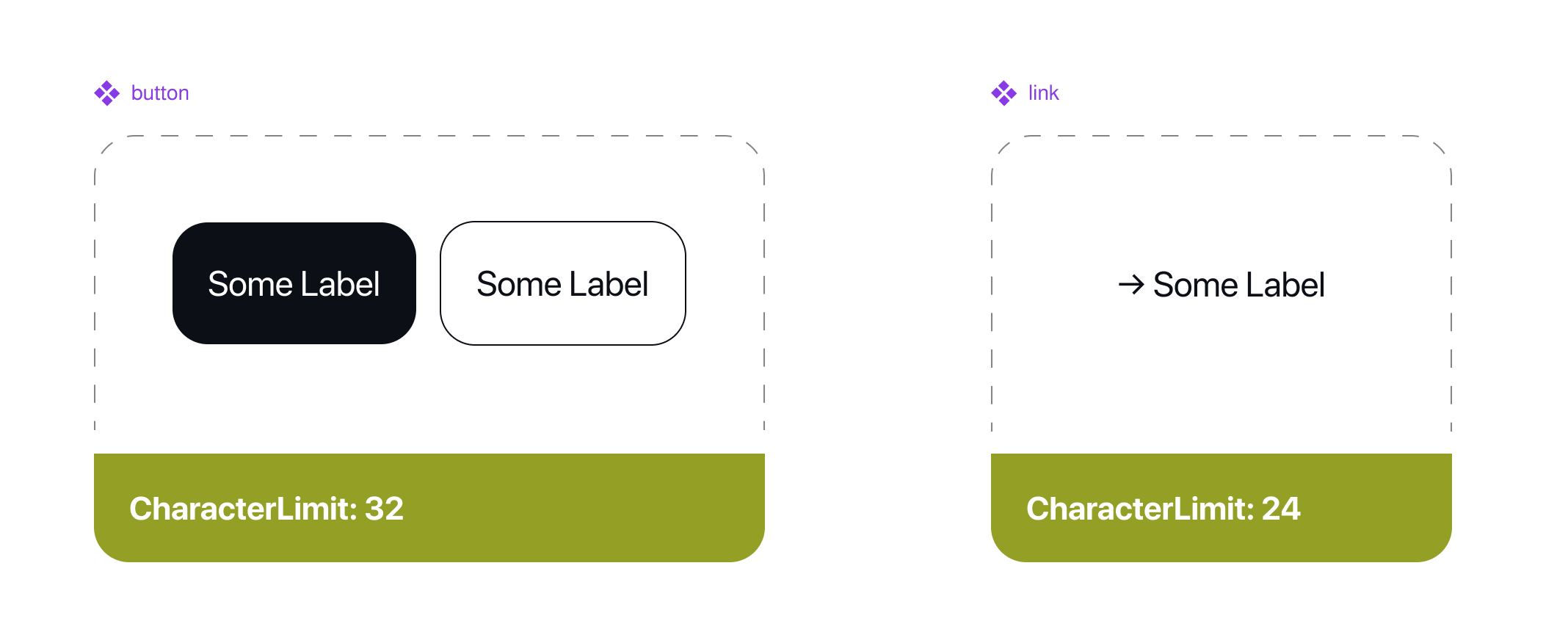
Designers added a small UX spec with character limits directly beneath each component in Figma. Our plugin extracted these limits and sent them to Localisation Help Hub, which safely stored and pushed them to Lokalise—ensuring limits were never lost during merges. This approach also gave designers immediate visibility into length constraints right inside Figma.
FIGMA PLUGIN + WEB DASHBOARD
Remove untranslatable elements from Lokalise
Problem
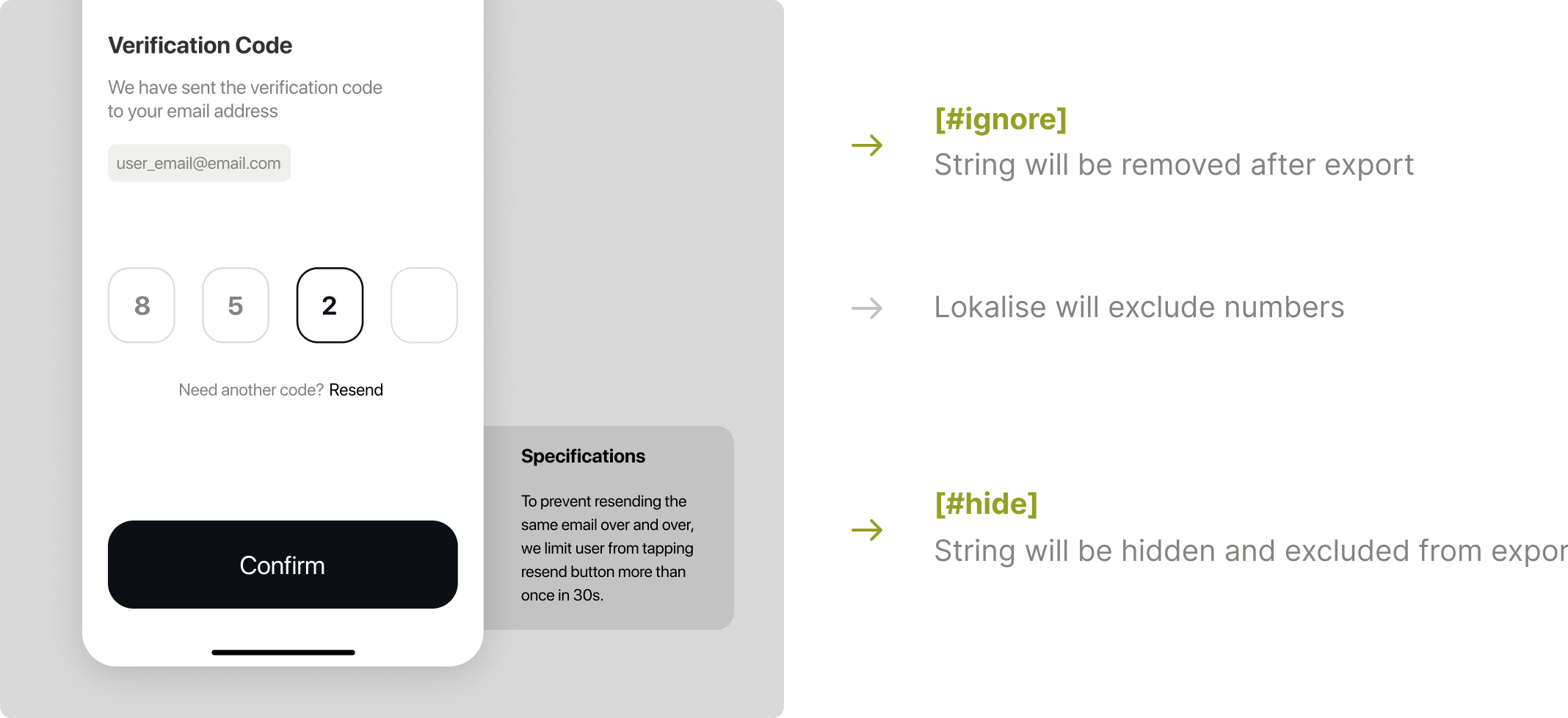
While Lokalise automatically excludes standard numbers and special characters, it missed two key areas: design specifications around screens and custom dynamic text strings.
How did we solve the issue
Designers tag specs with [#hide] and dynamic text with [#ignore]. The plugin hides [#hide] layers during export, while Localisation Help Hub automatically purges all [#ignore] keys directly from Lokalise.
Results & Impact
60% Faster Prep
Reduced time spent preparing screens for translation per release cycle.
0 Lost Limits
Completely eliminated character limit overrides during Lokalise merges.
100% Key Consistency
Automated 1:1 parity between Figma layer instances and design system keys.
Key Takeaway
Building Localisation Helper showed how targeted DesignOps tooling can turn a chaotic, error-prone process into a silent background asset. By stepping in to bridge Figma and Lokalise directly, we eliminated tedious admin work—giving designers and copywriters their time back to focus on building better products.
Internal Process Improvement
Localisation Helper
Is it really that complicated?
Localising a product sounds simple: just translate the text. In reality, it involves dozens of tedious sub-tasks. Think of it like packing for a trip—the flight is easy, but folding, labeling, and organizing take forever. Software handled the translations, but all the prep work around it was manual, repetitive, and error-prone.
Supporting multiple languages across hundreds of screens meant managing thousands of unique text strings. As features expanded, manual key naming became inconsistent and unsustainable. Worse, merging new keys in Lokalise wiped existing character limits unless manually re-added—a critical bug that couldn't be resolved through support alone.
Our DesignOps team stepped in to build a better process
my Role
Lead DesignOps Designer
Tools
Figma Plugin, Web Dashboard, Lokalise
Impact
60% faster export time & zero lost character limits
Timeline
2 sprints
Figma Plugin
Ensure key naming consistency through automation
Problem
Structured key naming gives developers a predictable, self-documenting hierarchy that prevents code conflicts and speeds up debugging. Previously, developers added keys manually—a slow process prone to human error.
How did we solve the issue
Design took over key naming directly from Figma before pushing to Lokalise. Layer names generate the key names automatically via a custom plugin, guaranteeing naming consistency and uniqueness across every string.
step 1
Renaming Components in the Design System
Two components can share identical initial copy while serving different contexts. To avoid conflicts when copy changes down the road, we needed distinct layer identifiers.
While our design system components were clean, internal layer names varied. The plugin combines the component name with the text inside the layer to auto-rename it (e.g., Button_SomeLabel). This was a quick one-time setup for existing components and is now standard for new ones.
step 2
Renaming Instances Across Screens
Designers simply select their target screens and tap "Add instance name". The plugin replaces placeholder layer names with the unique instance text across all layers. When exported to Lokalise, these layer names seamlessly serve as the official translation keys.
FIGMA PLUGIN + WEB DASHBOARD
Make character limits visible to designers and translators.
Problem
Adding character limits manually in Lokalise was repetitive—especially since keys originating from the same component shared identical constraints. Worse, whenever new keys pushed from Figma merged with existing ones, Lokalise wiped the character limits unless manually re-added—an ongoing bug we couldn't resolve through support alone.
How did we solve the issue
Designers added a small UX spec with character limits directly beneath each component in Figma. Our plugin extracted these limits and sent them to Localisation Help Hub, which safely stored and pushed them to Lokalise—ensuring limits were never lost during merges. This approach also gave designers immediate visibility into length constraints right inside Figma.
FIGMA PLUGIN + WEB DASHBOARD
Remove untranslatable elements from Lokalise
Problem
While Lokalise automatically excludes standard numbers and special characters, it missed two key areas: design specifications around screens and custom dynamic text strings.
How did we solve the issue
Designers tag specs with [#hide] and dynamic text with [#ignore]. The plugin hides [#hide] layers during export, while Localisation Help Hub automatically purges all [#ignore] keys directly from Lokalise.
Results & Impact
60% Faster Prep
Reduced time spent preparing screens for translation per release cycle.
0 Lost Limits
Completely eliminated character limit overrides during Lokalise merges.
100% KeyConsistency
Automated 1:1 parity between Figma layer instances and design system keys.
Key Takeaway
Building Localisation Helper showed how targeted DesignOps tooling can turn a chaotic, error-prone process into a silent background asset. By stepping in to bridge Figma and Lokalise directly, we eliminated tedious admin work—giving designers and copywriters their time back to focus on building better products.
Internal Process Improvement
Localisation Helper
Is it really that complicated?
Localising a product sounds simple: just translate the text. In reality, it involves dozens of tedious sub-tasks. Think of it like packing for a trip—the flight is easy, but folding, labeling, and organizing take forever. Software handled the translations, but all the prep work around it was manual, repetitive, and error-prone.
Supporting multiple languages across hundreds of screens meant managing thousands of unique text strings. As features expanded, manual key naming became inconsistent and unsustainable. Worse, merging new keys in Lokalise wiped existing character limits unless manually re-added—a critical bug that couldn't be resolved through support alone.
Our DesignOps team stepped in to build a better process
my Role
Lead DesignOps Designer
Tools
Figma Plugin, Web Dashboard, Lokalise
Impact
60% faster export time & zero lost character limits
Timeline
2 sprints
Figma Plugin
Ensure key naming consistency through automation
Problem
Structured key naming gives developers a predictable, self-documenting hierarchy that prevents code conflicts and speeds up debugging. Previously, developers added keys manually—a slow process prone to human error.
How did we solve the issue
Design took over key naming directly from Figma before pushing to Lokalise. Layer names generate the key names automatically via a custom plugin, guaranteeing naming consistency and uniqueness across every string.
step 1
Renaming Components in the Design System
Two components can share identical initial copy while serving different contexts. To avoid conflicts when copy changes down the road, we needed distinct layer identifiers.
While our design system components were clean, internal layer names varied. The plugin combines the component name with the text inside the layer to auto-rename it (e.g., Button_SomeLabel). This was a quick one-time setup for existing components and is now standard for new ones.
step 2
Renaming Instances Across Screens
Designers simply select their target screens and tap "Add instance name". The plugin replaces placeholder layer names with the unique instance text across all layers. When exported to Lokalise, these layer names seamlessly serve as the official translation keys.
FIGMA PLUGIN + WEB DASHBOARD
Make character limits visible to designers and translators.
Problem
Adding character limits manually in Lokalise was repetitive—especially since keys originating from the same component shared identical constraints. Worse, whenever new keys pushed from Figma merged with existing ones, Lokalise wiped the character limits unless manually re-added—an ongoing bug we couldn't resolve through support alone.
How did we solve the issue
Designers added a small UX spec with character limits directly beneath each component in Figma. Our plugin extracted these limits and sent them to Localisation Help Hub, which safely stored and pushed them to Lokalise—ensuring limits were never lost during merges. This approach also gave designers immediate visibility into length constraints right inside Figma.
FIGMA PLUGIN + WEB DASHBOARD
Remove untranslatable elements from Lokalise
Problem
While Lokalise automatically excludes standard numbers and special characters, it missed two key areas: design specifications around screens and custom dynamic text strings.
How did we solve the issue
Designers tag specs with [#hide] and dynamic text with [#ignore]. The plugin hides [#hide] layers during export, while Localisation Help Hub automatically purges all [#ignore] keys directly from Lokalise.
Results & Impact
60% Faster Prep
Reduced time spent preparing screens for translation per release cycle.
0 Lost Limits
Completely eliminated character limit overrides during Lokalise merges.
100% Key Consistency
Automated 1:1 parity between Figma layer instances and design system keys.
Key Takeaway
Building Localisation Helper showed how targeted DesignOps tooling can turn a chaotic, error-prone process into a silent background asset. By stepping in to bridge Figma and Lokalise directly, we eliminated tedious admin work—giving designers and copywriters their time back to focus on building better products.